When Python is the right tool
Excel already has two automation tools, and for many reports they are enough. Pick by where the work lives, not by which language is fashionable:
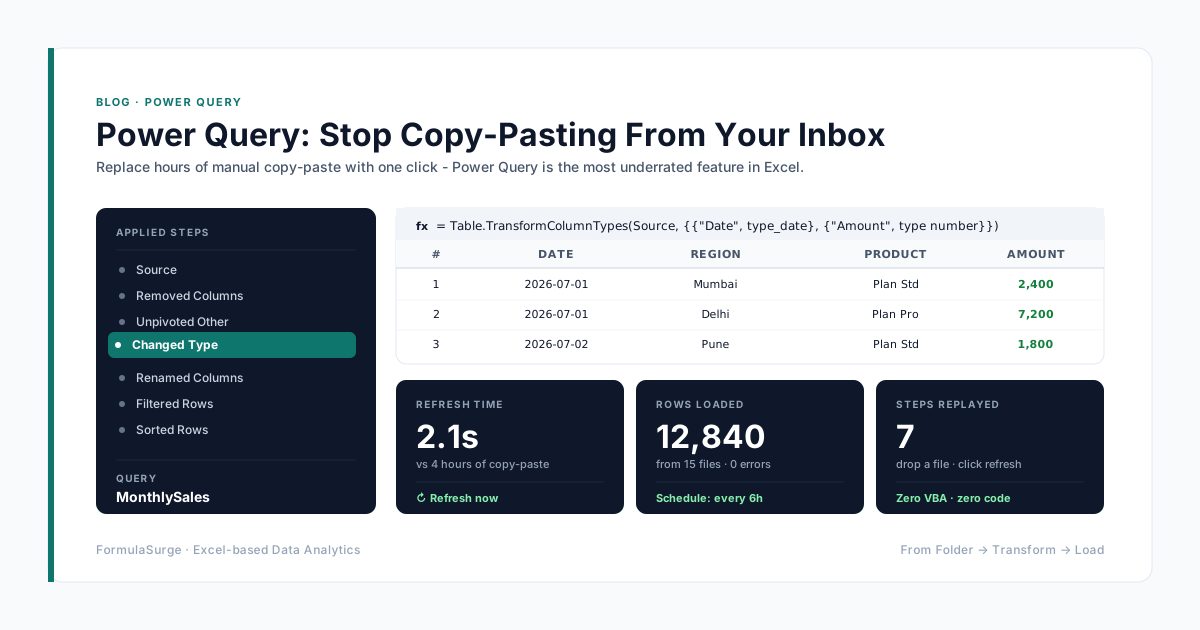
- Power Query - the data comes from a few files or a database and the people who refresh it only have Excel. No install, refreshes with one click. See Power Query: stop copy-pasting.
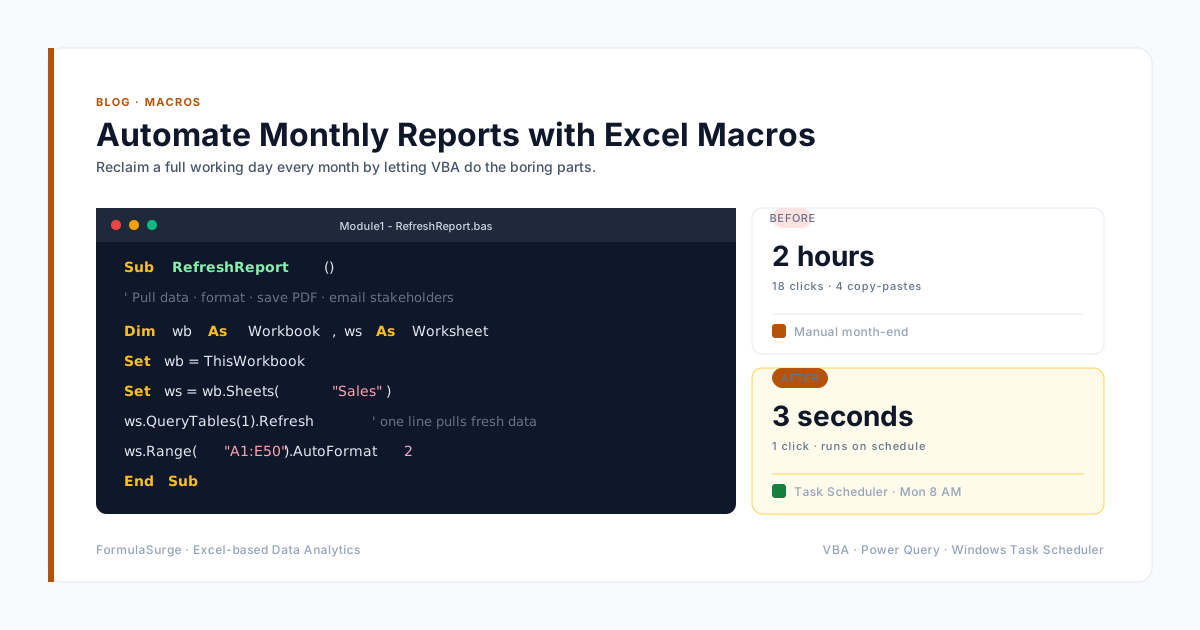
- VBA - the job is about the workbook itself: buttons, forms, printing, exporting PDFs. See VBA vs Power Query.
- Python - the job reaches outside one workbook: hundreds of files, an API or database, emailing the output, or running at 6 a.m. with nobody at the desk.
For a wider comparison of the two as analysis tools, read Excel vs Python pandas. This article is about the practical part: scripts that open, change and write Excel files.
Setup in five minutes
Install Python from python.org and tick Add python.exe to PATH during setup. Then open a terminal and install the two libraries you need:
pip install pandas openpyxlpandas reads sheets into tables (DataFrames) and does the data work. openpyxl handles the workbook: formatting, formulas, and writing into existing files. pandas uses openpyxl under the hood to read and write .xlsx.
Script 1: combine a folder of workbooks and summarise
The most common Excel chore: twelve monthly files, or one file per branch, with the same columns. This stacks them, keeps a column showing which file each row came from, and writes a summary with totals:
from pathlib import Path
import pandas as pd

frames = []
for file in sorted(Path(r"C:\Reports\Monthly").glob("*.xlsx")):
    if file.name.startswith("~$"):        # skip Excel's lock files
        continue
    df = pd.read_excel(file, sheet_name="Sales")
    df["Source file"] = file.name
    frames.append(df)

sales = pd.concat(frames, ignore_index=True)
summary = sales.pivot_table(index="Region", values="Amount", aggfunc="sum",
                            margins=True, margins_name="Total")
summary.to_excel(r"C:\Reports\Summary.xlsx")
Do not want to edit paths and column names by hand? The Python Excel Script Generator writes this script, plus split-by-column, summary and clean-and-dedupe versions, from the names you type.
Script 2: fill a formatted report template
to_excel writes plain values. When the report has to look the same every month (logo, colours, number formats), build the layout once in Excel and let openpyxl drop the numbers in:
from openpyxl import load_workbook

wb = load_workbook(r"C:\Reports\Template.xlsx")
ws = wb["Summary"]
ws["B2"] = "October 2026"

for row, (region, amount) in enumerate(summary["Amount"].items(), start=5):
    ws.cell(row=row, column=1, value=region)
    ws.cell(row=row, column=2, value=amount)

wb.save(r"C:\Reports\Summary - October 2026.xlsx")   # never overwrite the template
Cell formatting survives because you only change values. Two limits to know: openpyxl does not read every object in a file, so charts, images and shapes in the template can be lost on save; and a macro workbook (.xlsm) must be opened with keep_vba=True or the macros are dropped. Keep charts in a separate workbook that links to the output, or test the round trip on a copy first.
Script 3: write formulas, not just values
Writing a formula keeps the report auditable - the reader can click a total and see where it came from:
last = ws.max_row
ws[f"B{last + 1}"] = f"=SUM(B5:B{last})"     # Excel calculates it when the file is opened
ws[f"C{last + 1}"] = f"=B{last + 1}/12"
openpyxl stores formulas as text and never calculates them. Excel calculates them when the file is opened. The catch: if a second script reads that file with load_workbook(..., data_only=True) before anyone has opened and saved it in Excel, the formula cells come back as None. Do the arithmetic in pandas when another script needs the number.
Schedule it so nobody has to remember
A script that someone has to remember to run is only half automated. On Windows, one command creates a Task Scheduler job that runs on the 1st of each month at 8 a.m.:
schtasks /create /tn "Monthly sales report" /sc monthly /d 1 /st 08:00 ^
         /tr "py C:\Scripts\report.py"
The PC has to be on and signed in for the default task settings. On a Mac or Linux server, a cron line does the same. Write the output to a shared folder (OneDrive, SharePoint sync, a network drive) so the team finds the file without asking.
The gotchas that break real scripts
- Leading zeros disappear. Account codes, PIN codes and SKUs like 00417 become 417. Read those columns as text with
dtype. - Headings are not on row 1. Exports often start with a title block. Use
header=to point at the heading row. - PermissionError. The output file is open in Excel. Close it and run again.
- DD/MM dates read as MM/DD. Text dates like 03/04/2026 are ambiguous. Pass
dayfirst=Truetopd.to_datetimeand spot-check a date after the 12th. - Totals that do not match Excel.
pivot_tableandgroupbyskip rows where the group column is blank. Fill blanks first withdf["Region"] = df["Region"].fillna("(blank)")so the totals reconcile. - Old .xls files. openpyxl reads .xlsx only. Install
xlrdfor .xls, or resave the files as .xlsx. - Lock files. When someone has a workbook open, Excel creates a hidden
~$name.xlsxnext to it. Skip files that start with~$or the script crashes.
df = pd.read_excel(file, sheet_name="Ledger",
                   header=2,                          # headings are on row 3
                   dtype={"Account": str, "PIN": str}) # keep leading zeros
What about Python in Excel?
Python in Excel (the =PY function in Microsoft 365) is a different thing. You type Python in a cell, read ranges with xl("A1:D100", headers=True), and get results or charts back in the grid. It runs in Microsoft's cloud, so nothing needs installing - but Microsoft states it cannot access files on your computer or the network. That makes it a good tool for analysis inside one workbook, and the wrong tool for combining a folder of files, emailing reports or running on a schedule. Those jobs still need Python on a PC or server.
Before you hand the script to someone else
- Put every path and column name at the top of the script, so the next person edits one place.
- Print row counts as it runs, so a short month (missing file, empty sheet) is obvious.
- Stop with a clear message when a column is missing, rather than writing a half-empty report.
- Write down how to install Python and run it. The person after you may never have opened a terminal.
If the report has to run unattended for a team that does not read Python, that is the part worth getting right. The Excel automation service covers scoping, building and a written handover, using Power Query, VBA or Python - whichever the team can keep running.