Nested IF formulas are the single most common readability problem in any Excel workbook. The five-line formula is unreadable, the ten-line formula is unmaintainable, and the next reader cannot add a new branch without breaking the parenthesis count. IFS and SWITCH are the modern replacements. Both ship in Excel 365, both read top to bottom, and both are auditable. The four examples below are the patterns we ship most often.
The four patterns
Grade boundaries
Nested IF (old)
=IF(A1>=90, "A", IF(A1>=80, "B", IF(A1>=70, "C", IF(A1>=60, "D", "F"))))
IFS or SWITCH (new)
=IFS(A1>=90, "A", A1>=80, "B", A1>=70, "C", A1>=60, "D", TRUE, "F")
Five nested IFs become one IFS. The TRUE default is the F. The formula reads top to bottom and the next reader can add a new grade by adding one more condition-value pair.
Region assignment
Nested IF (old)
=IF(A1="N", "North", IF(A1="S", "South", IF(A1="E", "East", IF(A1="W", "West", "Other"))))
IFS or SWITCH (new)
=IFS(A1="N", "North", A1="S", "South", A1="E", "East", A1="W", "West", TRUE, "Other")
Same length, but the IFS reads as a flat list of conditions. The senior uses IFS for any condition chain longer than three. Below three, the nested IF is still readable and IFS is overkill.
Region with SWITCH
Nested IF (old)
=IF(A1="N", "North", IF(A1="S", "South", IF(A1="E", "East", "West")))
IFS or SWITCH (new)
=SWITCH(A1, "N", "North", "S", "South", "E", "East", "W", "West", "Other")
SWITCH is the right tool when the same expression is being compared. The formula is shorter than the IFS version and reads like a lookup table. The default is "Other".
Discount tier
Nested IF (old)
=IF(A1>=10000, 0.15, IF(A1>=5000, 0.10, IF(A1>=1000, 0.05, 0)))
IFS or SWITCH (new)
=IFS(A1>=10000, 0.15, A1>=5000, 0.10, A1>=1000, 0.05, TRUE, 0)
Discount tiers. The senior uses IFS for tiered calculations because the next reader can see every tier in order. The TRUE default is the 0% baseline tier - no discount.
The four usage tips
Always set an explicit default
IFS without a TRUE default returns #N/A when nothing matches. SWITCH without a default returns #N/A. The senior always adds the default - the formula is auditable, the workbook does not error silently.
Use SWITCH for lookups on the same expression
If the comparison is always the same expression (=A1, "X", "Y", "Z"), use SWITCH. The formula is shorter than IFS and reads like a lookup table. The right tool for state codes, region codes, status codes, and any 1-to-1 mapping.
Use IFS for conditions that are not the same expression
If the conditions are different comparisons (A1>0, A1<>"", ISBLANK(A1)), use IFS. SWITCH cannot handle different expressions on the same call. The right tool for grade boundaries, discount tiers, and any chain of mixed comparisons.
Avoid more than 7 conditions
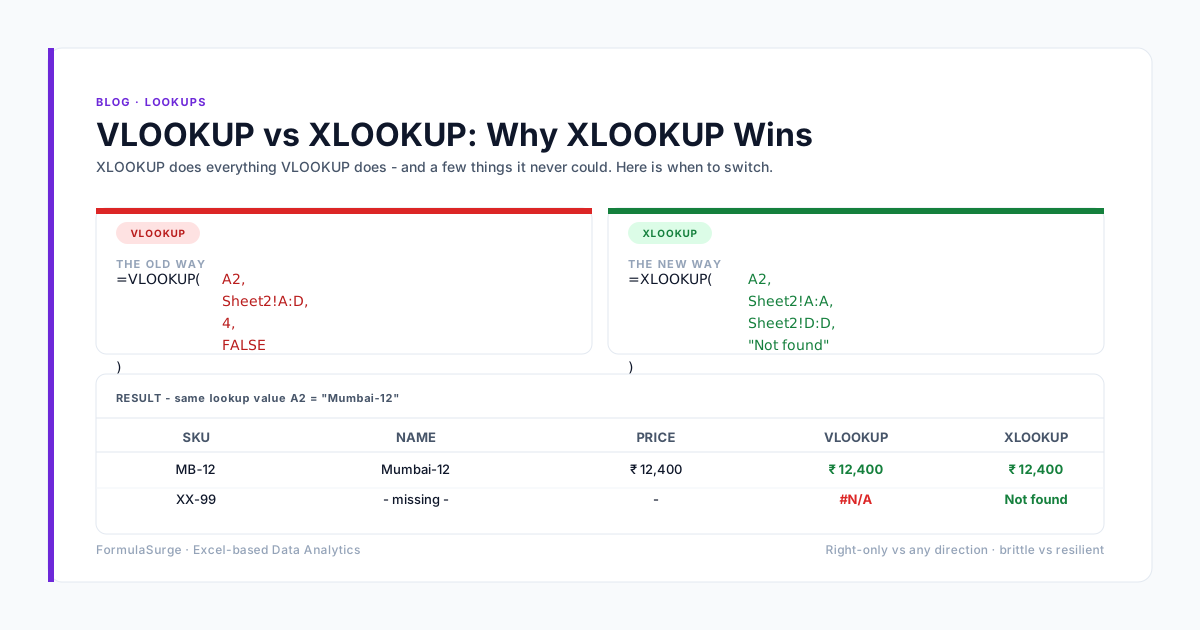
Beyond 7 conditions, the formula is unreadable. The fix: build a lookup table on a hidden tab and use XLOOKUP. The formula becomes =XLOOKUP(A1, table[Threshold], table[Value], default). The senior moves to a lookup table at 7 conditions.
What comes after IFS and SWITCH
For chains longer than 7 conditions, the right tool is a lookup table on a hidden tab, with an XLOOKUP at the call site. The formula is one function call, the conditions are editable in the table, and the next reader can see every branch without parsing a 200-character IFS. The pattern is: lookup table on a hidden tab → XLOOKUP at the call site → default value at the end of XLOOKUP. The senior moves to this pattern at 7 conditions. The IFS is fine below 7; the lookup table is the right answer beyond.