Named ranges are the single most important readability feature in any Excel workbook. A formula with named ranges reads like English; a formula with cell references reads like algebra. The five conventions below are the ones to follow in every workbook - the workbook is auditable, the team can hand it over, and the audit does not find a single Find & Replace rabbit hole.
The five naming conventions
Lowercase, snake_case
fx_rate, gst_rate, fy_start_date
Use lowercase and snake_case. The convention signals that the value is a constant, not a function. The Excel autocomplete shows the name in a different colour, which makes formulas easier to read.
Prefix by purpose
rpt_ for report, calc_ for calculation, input_ for input, ref_ for reference
Prefix every name by its purpose. rpt_revenue means the revenue number on a report. calc_revenue means the intermediate calculation. input_revenue means the raw input from the user. The prefix makes the formula read like a sentence.
Suffix by data type
_date, _rate, _pct, _count, _amount, _id
Suffix every name by its data type. _date is a date, _rate is a decimal, _pct is a percentage, _count is an integer, _amount is a currency. The suffix catches the wrong-type bug at the formula level - you cannot multiply a _date by a _pct by accident.
No spaces, no special characters
Not: "GST Rate" · Yes: gst_rate
Names cannot have spaces or most special characters. The fix: use snake_case. The fix also makes the name usable in Power Query M code, in VBA, and in Office Scripts. A space-only name is a one-workbook name.
Scope globally unless local is essential
Workbook scope: fx_rate · Sheet scope: report1_fx_rate (only if it must differ)
Workbook scope is the default. Worksheet scope only when the same logical name must hold different values on different sheets - e.g. a template that is used by multiple teams. Sheet scope adds cognitive load and should be the exception.
Named range vs Table
The two overlap, and the senior uses them for different things. A named range is a label on a single cell, a fixed range, a constant, or a formula. A Table is a structured data block with a built-in name, built-in styling, and a row that grows automatically. Use named ranges for assumptions, constants, and lookup tables. Use Tables for raw data and any list that grows. The two combine cleanly: a formula can use Table1[Amount] as the data range and rate as the multiplier, and the final formula reads like a sentence.
The five mistakes to avoid
Name that is also a cell reference
A name like A1 or B2 collides with the cell reference A1 and B2. Excel accepts the name but the formula reads ambiguously. The fix: prefix every name with a letter that cannot be a cell reference (e.g. n_, x_, v_).
Hard-coded range that no longer matches the data
A name like data_range = Sheet1!$A$1:$F$1000 silently breaks when the data grows past row 1000. The fix: use a Table (Ctrl+T) and reference Table1[Column]. Tables grow automatically and the reference stays valid.
Name that is deleted but referenced in a formula
The formula returns #REF! and the user has no idea why. The fix: audit named ranges in Name Manager before any refactor. Delete only names that are not referenced. The senior should run this audit on every inherited workbook.
Name that is too generic
A name like data or temp is used in every workbook and creates naming collisions. The fix: prefix with the workbook purpose. data_2026_revenue is unambiguous; data is not.
Name on a deleted sheet
If a named range points to Sheet1 and Sheet1 is deleted, the name becomes invalid. The fix: never reference a sheet in a name. Reference the workbook, or use a Table that lives on a long-lived sheet.
The audit checklist
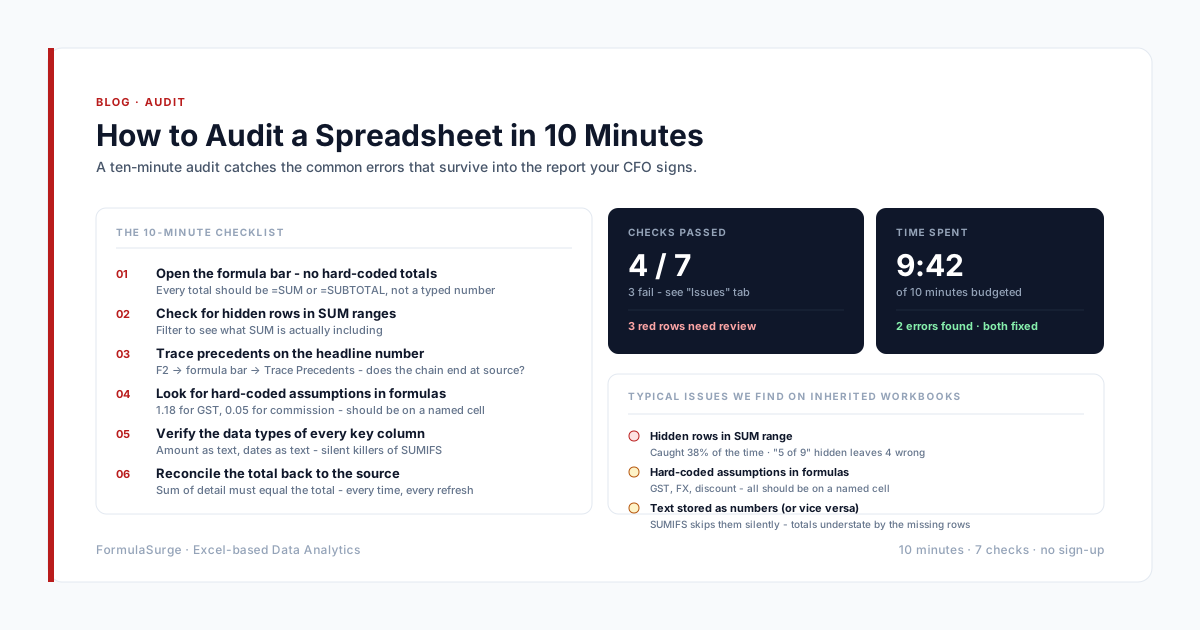
Before any refactor, before any workbook handover, and before any audit, run this checklist in Name Manager:
- Open Formulas → Name Manager. Sort by Scope. Sheet-scope names are usually a smell - review each one.
- Sort by Refers To. Anything that points to a #REF! is a broken name - delete it.
- Sort by Name. Look for duplicates. Two names with the same name but different scope is a footgun.
- For each name, click the cell it points to. If the cell is empty, the name is unused - consider deleting.
- For each name, search the workbook for the name string. If the name is not used in any formula, it is dead weight - delete.
The senior runs this checklist on day one of every engagement. The audit typically finds 5-15 broken or unused names in any inherited workbook. Cleaning them up is the prerequisite to any of the more interesting refactors.