What changed
Growing data used to force a choice: a fixed range like A2:A5000 that silently misses row 5001, a whole-column A:A that makes dynamic arrays spill thousands of zeros, or an Excel Table. TRIMRANGE and trim references add a fourth option - a big range that shrinks to the rows actually in use.
Syntax
- TRIMRANGE(range, [trim_rows], [trim_cols]) - for both arguments 0 = none, 1 = leading blanks, 2 = trailing blanks, 3 = both (default).
- A1:.E10 - trim trailing blanks.
- A1.:E10 - trim leading blanks.
- A1.:.E10 - trim both.
Three examples
A distinct list that grows with the data and has no trailing 0:
=UNIQUE(A2:.A5000)A lookup on whole columns that only scans the used rows:
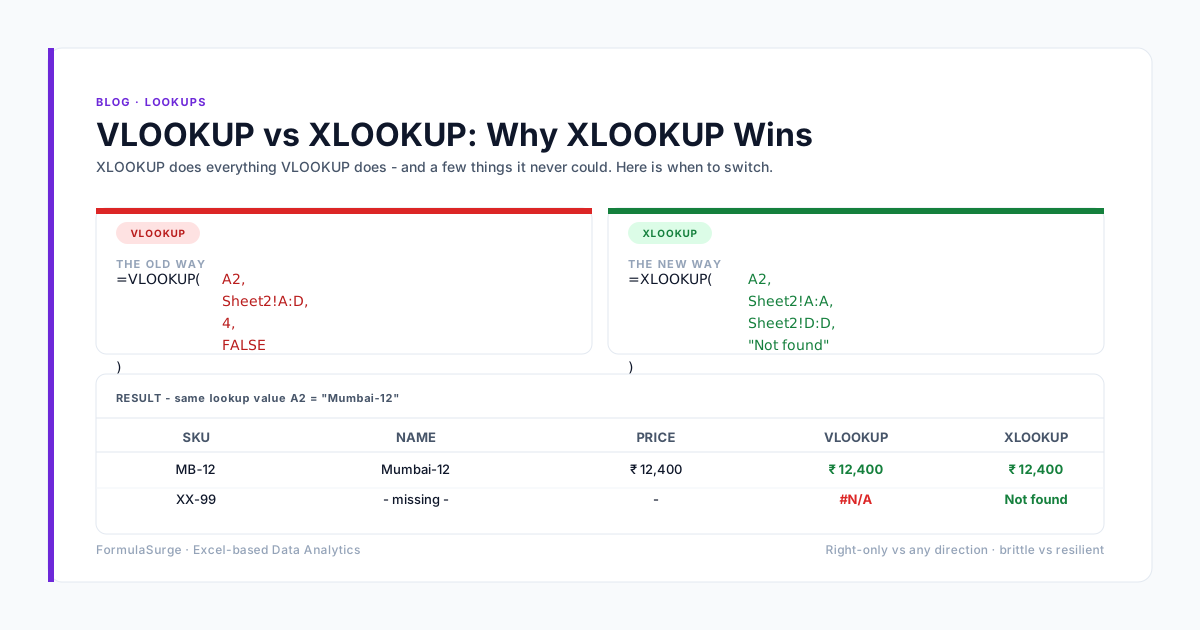
=XLOOKUP(F2, A:.A, C:.C)Spill a block of data without the empty rows underneath:
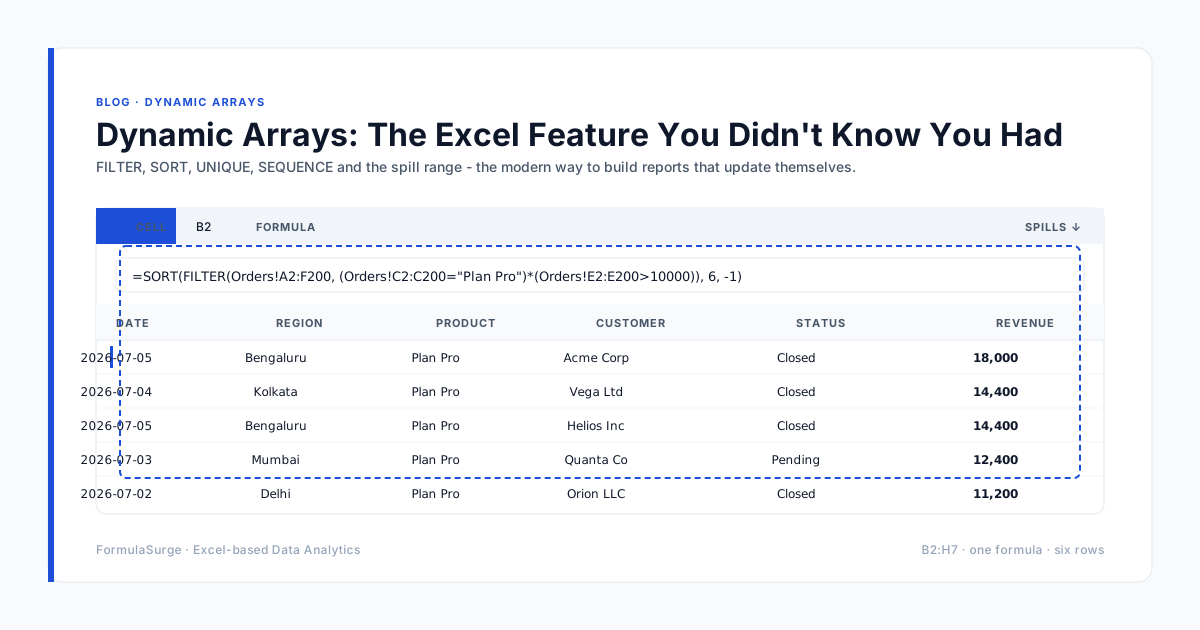
=TRIMRANGE(A1:E10000)Will this break your workbook?
- Two trimmed ranges can end up different sizes. Each one trims separately. If column C has a value lower down than column A, the two ranges in
=XLOOKUP(F2, A2:.A5000, C2:.C5000)no longer match and XLOOKUP returns #VALUE!. Trim one block and pick the columns from it, or use an Excel Table. - Only the edges are trimmed. A blank row in the middle of the data stays, so a UNIQUE still shows one blank.
- Older Excel cannot read them. Colleagues on Excel 2021 or earlier cannot calculate TRIMRANGE or trim references. Paste values or use a Table before sending.
- A stray value far down the sheet - a note in row 90,000 - stops the trim there. Clear it, or the range is as big as before.
Trim reference or Excel Table?
For a data block that other people add to, an Excel Table is still the more robust choice: it grows with the data and keeps columns the same height. Trim references are the quick fix for an existing sheet full of fixed ranges or whole-column formulas that you don't want to restructure.