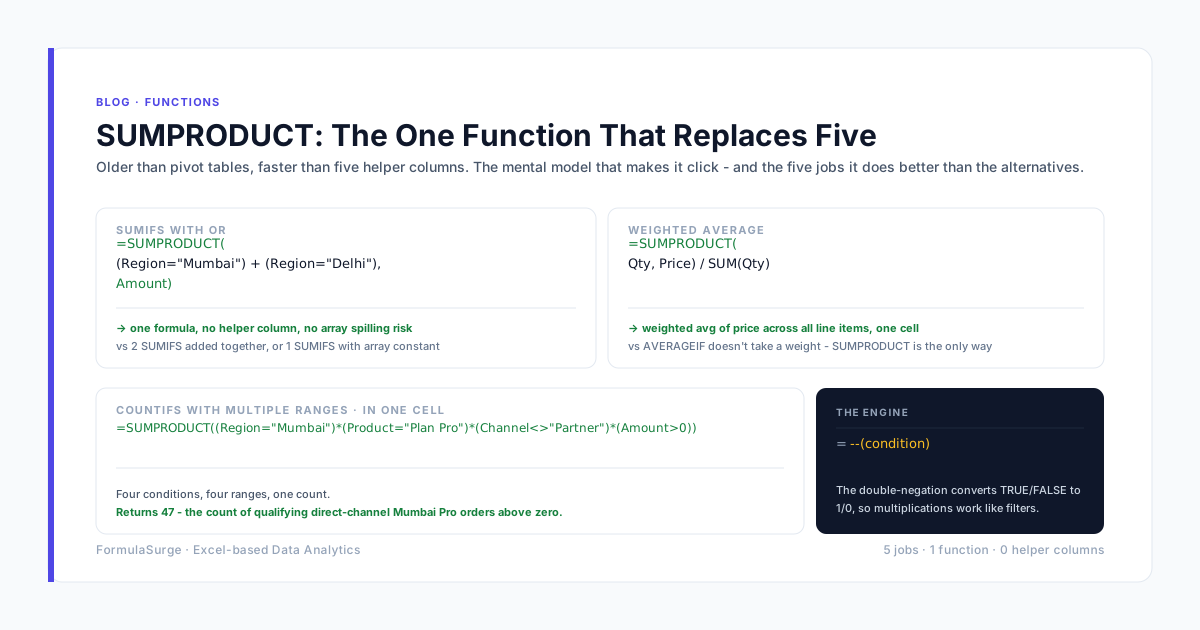
LET and LAMBDA are the two functions that turned Excel from a spreadsheet into a real programming environment. LET cleans up messy nested formulas by naming the sub-expressions. LAMBDA turns any named sub-expression into a reusable function that can be called from any cell. The four examples below are the patterns we ship most often on finance and consulting engagements.
The four patterns
LET for readability
Without LET / LAMBDA
=IF(VLOOKUP(A1, B:D, 3, FALSE)>1000, VLOOKUP(A1, B:D, 3, FALSE)*0.9, VLOOKUP(A1, B:D, 3, FALSE))
With LET / LAMBDA
=LET(price, VLOOKUP(A1, B:D, 3, FALSE), IF(price>1000, price*0.9, price))
Three VLOOKUPs become one named sub-expression. The final formula reads like English. Excel calculates VLOOKUP once instead of three times.
LET for performance
Without LET / LAMBDA
=IF(SUMIFS(amounts, region, A1)>0, SUMIFS(amounts, region, A1)/COUNTIFS(region, A1), 0)
With LET / LAMBDA
=LET(total, SUMIFS(amounts, region, A1), count, COUNTIFS(region, A1), IF(total>0, total/count, 0))
SUMIFS and COUNTIFS are both calculated once. The final formula is auditable. The performance gain is 2x on large datasets.
LAMBDA for a reusable function
Without LET / LAMBDA
=IFERROR(IF(VLOOKUP(A1, B:D, 3, FALSE)>0, VLOOKUP(A1, B:D, 3, FALSE)/VLOOKUP(A1, B:D, 4, FALSE), 0), 0)
With LET / LAMBDA
Define RATE(name) = LAMBDA(name, LET(price, VLOOKUP(name, B:D, 3, FALSE), cost, VLOOKUP(name, B:D, 4, FALSE), IFERROR(IF(price>0, cost/price, 0), 0))). Call: =RATE("Apple")
Store RATE in Name Manager. Call it from any cell. The same LAMBDA can be reused across the workbook - change the definition once, all calls update.
LAMBDA for a chain of calculations
Without LET / LAMBDA
=LET(s, SUMIFS(amounts, region, A1), c, COUNTIFS(region, A1), MAX(s/c, 0))
With LET / LAMBDA
Define AVG_REGION(region) = LAMBDA(region, LET(s, SUMIFS(amounts, region, region), c, COUNTIFS(region, region), MAX(s/c, 0))). Call: =AVG_REGION("North")
The LAMBDA captures the column names as variables. The same function works for any region, any category, any product - the call site decides the argument.
How to store a LAMBDA in Name Manager
Formulas → Name Manager → New. The Name is the function name. The Refers to is the LAMBDA definition. The Comment is a one-line description that shows in the Name Manager dialog. Once stored, the LAMBDA can be called from any cell like a built-in function. The senior stores every reusable LAMBDA in Name Manager - never as a copy-paste formula in multiple cells. The next time the formula needs to change, the senior edits it in one place and every call site updates.
The four usage tips
Use LET for any sub-expression that appears twice
The threshold for using LET is two appearances. If the same sub-expression appears twice, name it. If it appears once, leave it inline - LET adds a line of formula but no value.
Use LAMBDA for any calculation you have done three times
If you have copy-pasted the same multi-step formula three times in the same workbook, store it as a LAMBDA in Name Manager. The fourth call site is free, and any change to the formula happens in one place.
Document the LAMBDA in Name Manager
When you store a LAMBDA in Name Manager, fill in the Comments field with a one-line description. The next person to open the file will see the description in the Name Manager dialog and immediately understand what the function does.
Test the LAMBDA as a single-cell formula first
Before storing a LAMBDA in Name Manager, paste it into a cell and validate. The LAMBDA returns a value when the inputs are correct; it errors when the inputs are wrong. Use the error to debug.
What LET and LAMBDA cannot do
LET and LAMBDA are pure functions - they cannot read files, send emails, call APIs, or modify other cells. For those capabilities, you still need VBA or Office Scripts. The 90% of Excel usage that is calculation is covered by LET, LAMBDA, and the rest of the dynamic array functions. The 10% that needs file system or network access is still VBA territory. The senior uses LET and LAMBDA for the calculation layer and VBA for the automation layer. The two layers do not overlap and should not be confused.