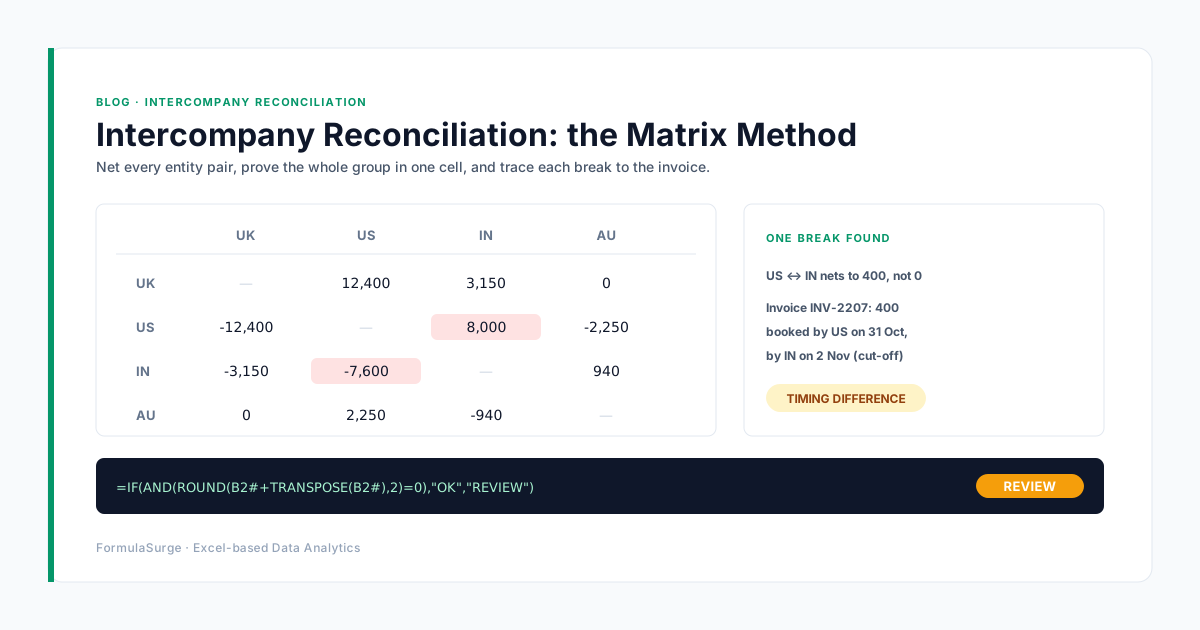
Before a group can consolidate, every intercompany balance has to agree: what one entity says another owes it must equal what the other says it owes. When it doesn't, the close stalls while people email each other screenshots of ledgers. The method below turns that into a refreshable workbook: one matrix that shows the whole group at a glance, one cell that says whether it agrees, and a short list of breaks traced to the invoice.
The four-tab workbook
Data
Every entity's intercompany accounts in one Table named IC, loaded by Power Query From Folder: entity, counterparty, reference, local amount, currency, group-currency amount.
Pairs
One row per entity pair with its net balance. A pair that nets to zero agrees; anything else is a break.
Matrix
Entity down the side, counterparty across the top. The whole group on one screen, and one cell that proves it.
Breaks
Only the lines behind the pairs that don't net to zero, matched invoice by invoice, ready for the entity accountants to explain.
Step by step, with the formulas
The formulas use a Table named IC with the columns Entity, Counterparty, Reference and GroupAmount.
1. Load every entity's intercompany accounts with Power Query
Ask each entity for the same export (intercompany receivable and payable accounts only) and save them in one folder. Data > Get Data > From Folder combines them and adds the file name, which becomes the Entity column. Next month, replace the files and Refresh All.
2. Standardise codes, signs and currency
Map every counterparty to the same entity code the files use, show receivables positive and payables negative, and translate every line to the group currency at one closing rate per currency, held in a small Rates table. The group-currency column:
=ROUND([@LocalAmount]*XLOOKUP([@Currency],Rates[Currency],Rates[ClosingRate]),2)
3. Give both sides of a pair the same key
A pair key puts the two entity codes in alphabetical order, so Entity A's receivable from B and Entity B's payable to A land on the same key.
=IF([@Entity]<[@Counterparty],[@Entity]&"|"&[@Counterparty],[@Counterparty]&"|"&[@Entity])
4. Net every pair with SUMIFS
List the pairs with UNIQUE and net each one with SUMIFS on the group-currency amount. In a clean group every pair nets to zero. On the Pairs tab, the list of pairs in A2 and the net next to it:
A2: =SORT(UNIQUE(IC[PairKey])) B2: =SUMIFS(IC[GroupAmount],IC[PairKey],A2#)
5. Prove the whole group with the matrix
Build the entity-by-counterparty matrix with one SUMIFS, then check it against its own TRANSPOSE. If every cell plus its mirror is zero, the group agrees and the eliminations are safe. With the entity codes down column A from A2 and across row 1 from B1, one formula fills the matrix:
B2: =SUMIFS(IC[GroupAmount],IC[Entity],A2#,IC[Counterparty],B1#) Check: =IF(AND(ROUND(B2#+TRANSPOSE(B2#),2)=0),"OK","REVIEW")
Here A2# and B1# are the spilled entity lists (for example =SORT(UNIQUE(IC[Entity])) and its TRANSPOSE). Add conditional formatting to colour any cell whose mirror doesn't cancel it, and the breaks light up on one screen.
6. Trace each break to the invoice
For the pairs that don't net to zero, match lines across the two entities on pair key plus reference with XLOOKUP. What's left is the short list each entity accountant has to explain. For each line, look for the opposite amount on the other side of the same pair and reference:
=XLOOKUP([@PairKey]&"|"&[@Reference]&"|"&-[@GroupAmount],IC[PairKey]&"|"&IC[Reference]&"|"&IC[GroupAmount],IC[Entity],"UNMATCHED")
Then list only the unmatched lines for the pairs that broke, with FILTER. That list, not the whole ledger, is what goes to the entity accountants.
Five reasons intercompany balances don't agree
Timing and cut-off
One entity invoiced on the 31st; the other booked it on the 2nd. The amount is right, the month is not. Agree a cut-off rule and the break disappears next month.
Different exchange rates
Each entity translated at its own rate or date. Translating both sides at one group closing rate (step 2) removes this, and any FX difference that remains belongs in its own line, not hidden in the balance.
Wrong counterparty code
A charge to Entity C posted against Entity D. Both pairs break by the same amount in opposite directions: a pattern the matrix makes easy to spot.
One-sided accruals
Management fees or recharges accrued by the charging entity but not yet by the receiving one. Common at quarter-end.
Disputed or reversed charges
One side reversed an invoice the other side still carries. The reference-level match in step 6 shows exactly which invoice.
When it's worth building properly
If your group close waits every month on intercompany emails, the workbook above changes the routine to: drop in the files, refresh, read one cell, and send each entity only its own breaks. The details that take real thought are your entity codes, your export formats and your FX policy, which is exactly what a fixed-price build should agree in writing before any work starts.
Keep reading: Excel Month-End Close: How Indian SMEs Do It Faster.