Most broken workbooks don't show an error. The total is just wrong, because a formula was typed over, a range stops one row short or a lookup points at the wrong column. Excel's built-in auditing tools find most of these in minutes, if you know which one to reach for. These are the eight we use, in the order we use them.
1. Show Formulas (Ctrl+`)
Press Ctrl+` (the key left of 1) to switch every cell to its formula. Scan each column: a formula column should show the same pattern all the way down. A number in the middle of a column of formulas is a typed-over value. Press Ctrl+` again to switch back.
2. Trace Precedents and Trace Dependents
Select a cell and choose Formulas > Trace Precedents to draw arrows to every cell it reads. A dashed arrow with a sheet icon means the source is on another sheet or in another file - double-click the arrow to jump there. Trace Dependents does the reverse: it shows what will change if you edit this cell. Remove Arrows clears them.
3. Evaluate Formula
For a long nested formula, Formulas > Evaluate Formula steps through it one part at a time and shows the result of each step. It is the fastest way to see which part of an IF, XLOOKUP or SUMIFS returns the wrong value.
4. Watch Window
Add key totals to Formulas > Watch Window and they stay visible while you edit other sheets. Change an input on one sheet and watch whether the summary moves the way you expect.
5. Error Checking
Formulas > Error Checking walks through every cell Excel flags: errors, formulas that differ from their neighbours, formulas that skip adjacent cells and numbers stored as text. Don't click "Ignore" by habit - the "inconsistent formula" flag is often the real bug.
6. Find hard-coded numbers with Go To Special or ISFORMULA
Select a formula area, press F5 > Special > Constants and tick only Numbers. Excel selects every typed number, so anything selected inside a calculated block needs a reason. To keep it visible, add a conditional formatting rule over the range:
=AND(NOT(ISFORMULA(A1)), ISNUMBER(A1))Pair it with =FORMULATEXT(A1) in a helper column when you need to document or compare formulas row by row.
7. Inquire and Spreadsheet Compare
If your edition includes it, turn on Inquire under File > Options > Add-ins > COM Add-ins. Workbook Analysis lists hidden sheets, external links, formulas with errors and constants in one report. Compare Files shows every cell that changed between two versions - useful when last month's file worked and this month's doesn't.
8. Check names, links and hidden sheets
Open Formulas > Name Manager and filter for names with errors. Then check Data > Edit Links for links to other files, and right-click a sheet tab > Unhide for hidden sheets. Broken names and old links are where inherited workbooks hide the most surprises.
Formula auditing best practices checklist
- One formula per column: the same formula from top to bottom, no exceptions.
- No hard-coded numbers inside formulas - put rates and thresholds in labelled input cells.
- Whole-column or table references, so new rows are never left out.
- A check cell that ties the summary back to the source total, showing 0 when they match.
- Inputs, calculations and outputs on separate, clearly named sheets.
- No links to other files unless they are documented.
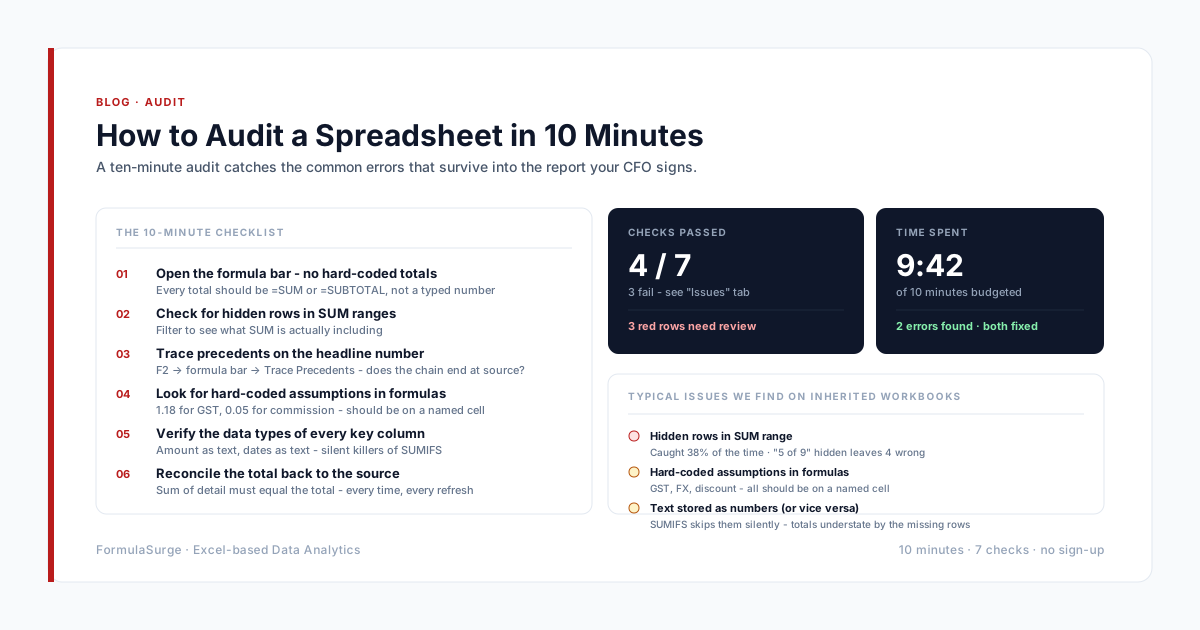
For a shorter routine to run before a report goes out, use our 10-minute spreadsheet audit checklist. If the workbook is large, inherited or feeds decisions, our spreadsheet audit and repair service starts with a paid Scoping Sprint: a written diagnosis and a fixed price before any build.