
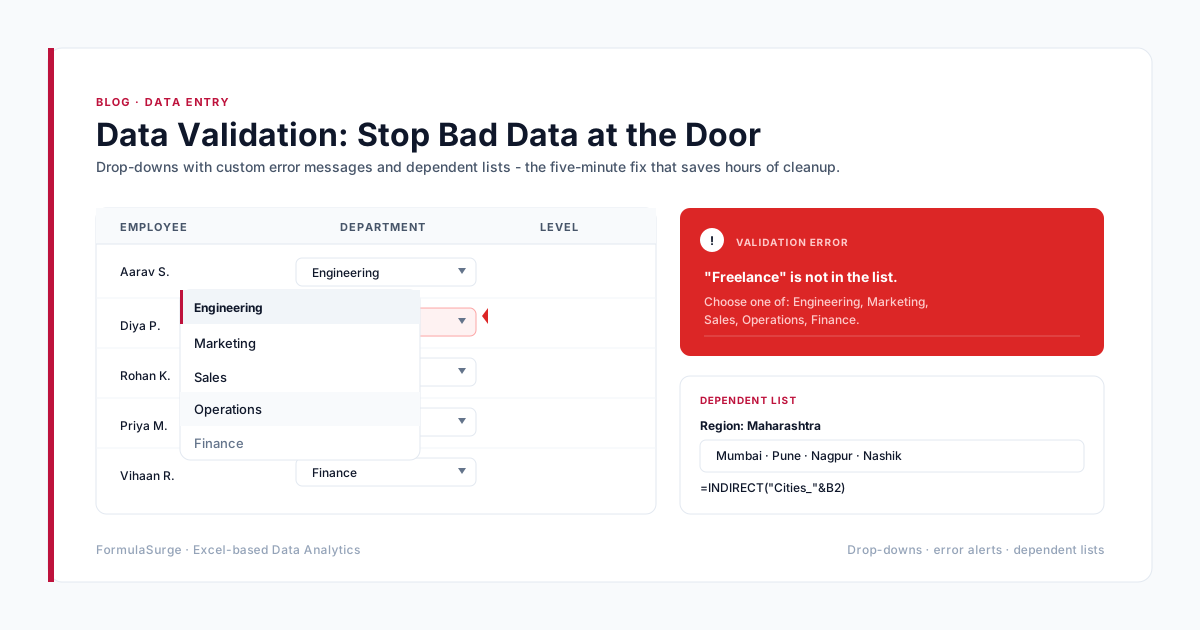
In current Excel the message reads "This value doesn't match the data validation restrictions defined for this cell." Older versions say "The value you entered is not valid." Google Sheets shows "Input must fall within specified range" or a red warning triangle. All three mean the same thing: the cell has a rule, and the value breaks it.
The usual causes
- Numbers stored as text. "100" pasted from a system is text, so a whole-number rule rejects it. Convert with
VALUEor Text to Columns. - Hidden spaces. "Open " is not "Open". Clean the source list and the entry with
TRIM. - Dates typed as text. A date rule needs a real date. Check with
=ISNUMBER(A2); convert withDATEVALUE. - Decimals under a whole-number rule. 12.5 fails "Whole number". Switch the rule to "Decimal" if decimals are valid.
- The list range is too short. A new item was added below the range the rule points at. Use an Excel Table or a spill reference so the list grows.
Why validation sometimes seems not to work
Data validation only checks values as they are typed. Pasting overwrites the rule together with the value, and values already in the sheet are never re-checked. Run Data > Data Validation > Circle Invalid Data to find every breach, and use Paste Special > Values to paste without destroying the rule.
If the drop-down itself won't save
If Excel refuses the rule when you press OK, see "The list source must be a delimited list". For building rules that hold up, read Data validation: stop bad data at the door.
Still stuck?
Send one problem cell to the free Formula Clinic, or ask for a free written quote on a quick fix (Excel error fixing). All error guides are in the Excel error library.