
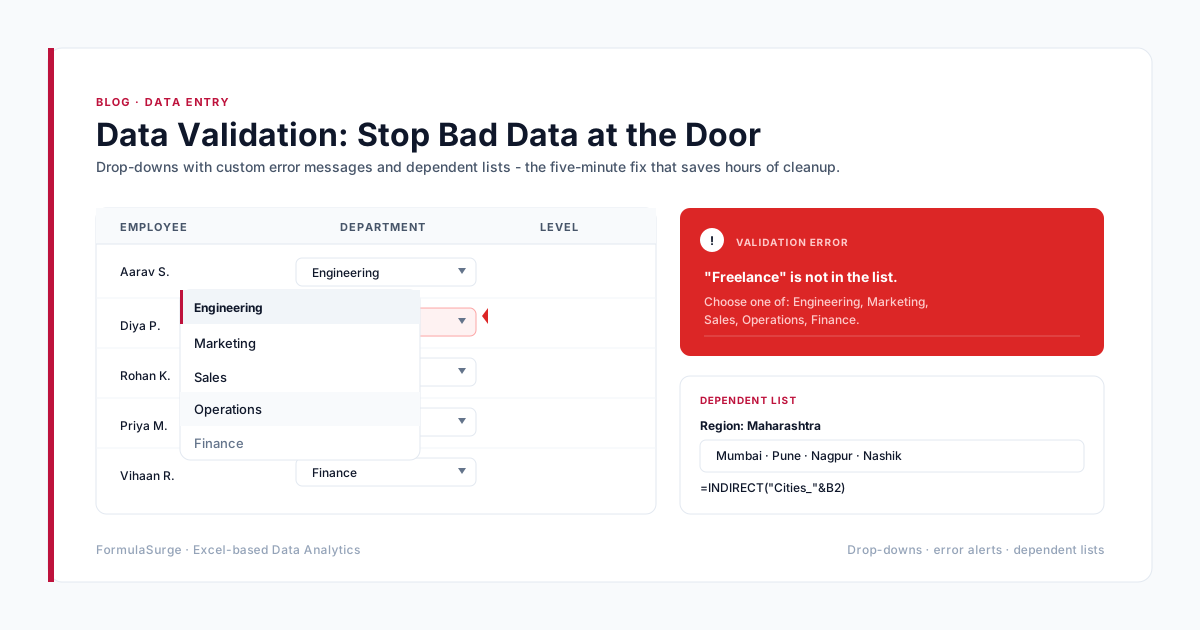
The full message reads: "The list source must be a delimited list, or a reference to single row or column." Excel shows it when you press OK in the Data Validation dialog with Allow: List selected and a Source it cannot use.
The five causes, and the fix for each
1. The range has more than one column
=$A$2:$B$20is two columns, so Excel can't tell which one holds the items. Point at one column: =$A$2:$A$20.
2. The typed list uses the wrong separator
Typed items such as Open,Closed,On hold must use your system list separator. On many European settings that is a semicolon: Open;Closed;On hold.
3. The typed list is longer than 255 characters
Move the items into cells (ideally an Excel Table) and reference that range instead.
4. The formula returns several columns or areas
OFFSET, INDEX or CHOOSE formulas must return a single column or row. A reference to several separate areas (such as A2:A5,C2:C5) is also rejected.
5. The spill reference points at a multi-column result
=$E$2# works for a one-column UNIQUE or SORT result. If the spilled array has two columns, wrap it: =TAKE($E$2#,,1) in a helper cell, then reference that spill.
A drop-down list that maintains itself
Keep the items in an Excel Table, give the column a name (Formulas > Name Manager), and set the Source to =ItemList. New rows join the list automatically. More patterns are in Data validation: stop bad data at the door.
Still stuck?
Paste the formula into the free Excel Error Solver, or send one broken formula to the free Formula Clinic. If the whole workbook needs fixing, quick fixes get a free written quote (see Excel error fixing). All error guides are in the Excel error library.